RAG Sync
Automate knowledge base synchronization between Salesforce and AI RAG models
Why is RAG Sync Introduced?
The synchronization process is crucial as businesses prefer managing FAQs within Salesforce Knowledge Base. However, AI operates on RAG (Retrieval-Augmented Generation). RAG Sync enables businesses to maintain Salesforce KB articles as the source of truth while also delivering data to the RAG model in the required format.
Without RAG Sync, business users would need to:
- Manually extract articles with each change
- Convert them to CSV/JSON format
- Upload them to a storage bucket
- Pull the files into the RAG model
- Execute Vector DB jobs
With RAG Sync, this entire process is automated. RAG Sync allows for the selective extraction of Salesforce Knowledge Base (KB) articles in CSV/JSON format for any object, which can then be pushed to AI RAG.
File-Based RAG Sync
RAG Sync supports two primary data ingestion methods:
- Object-Based Sync: Extract data from Salesforce objects (standard or custom) and synchronize them to the vector store
- File-Based Sync: Upload files directly to the vector store or Google Cloud storage, enabling agents to use them as context for knowledge grounding and data retrieval
File-based RAG Sync provides flexibility for organizations that maintain knowledge in external documents, PDFs, spreadsheets, or other file formats outside of Salesforce objects. This approach allows agents to access a broader range of information sources for more comprehensive and accurate responses.
How to Navigate to RAG Sync
- Click on the App Launcher
- Type "RAG syncs" and open the application
How to Create a RAG Sync Record
Click on the New button in the top right corner and fill in the following details:
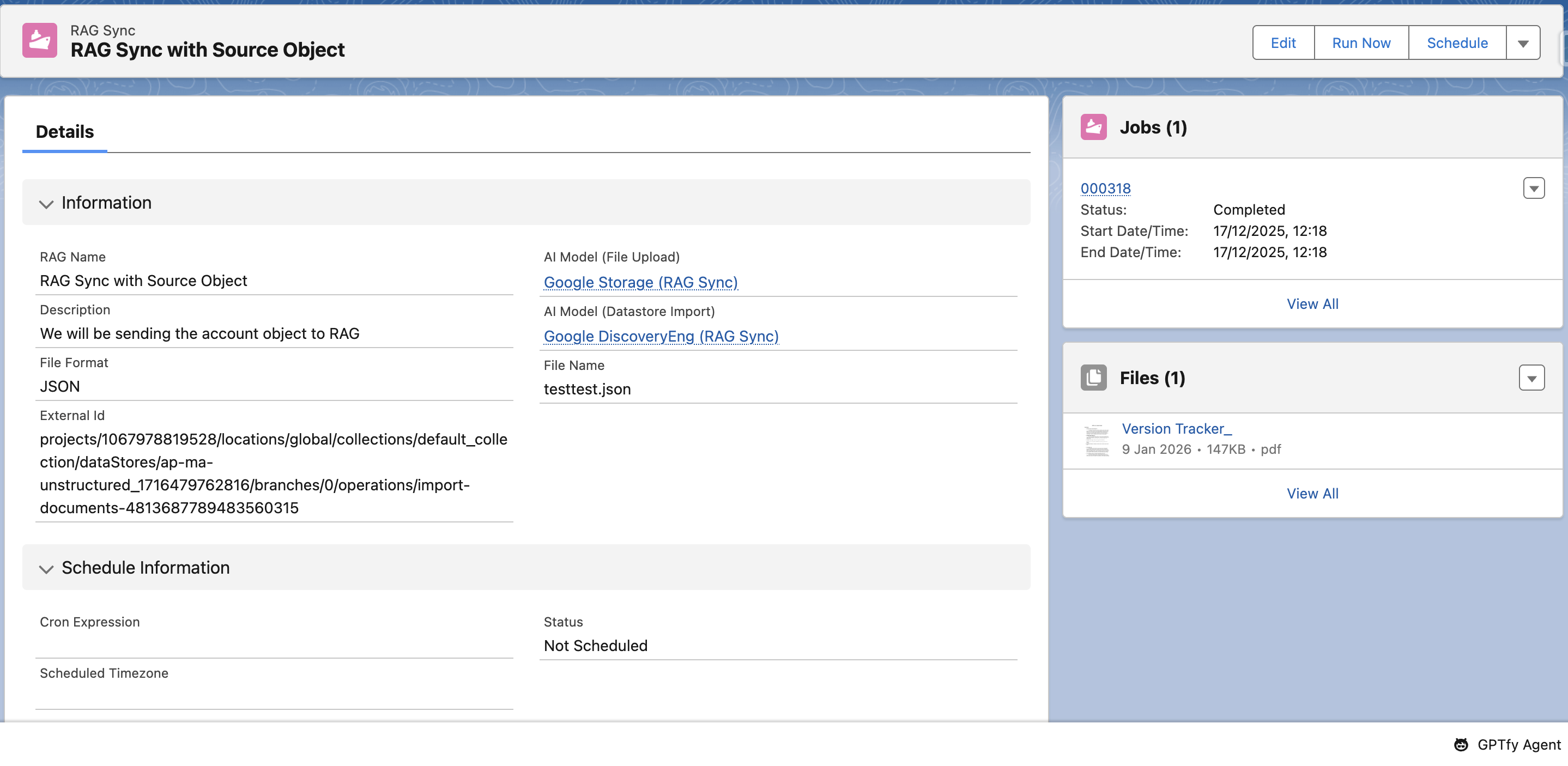
Basic Configuration
- Name: Provide a name for the RAG sync record
- Description: Provide related information about the RAG's usage, contents, and purposes
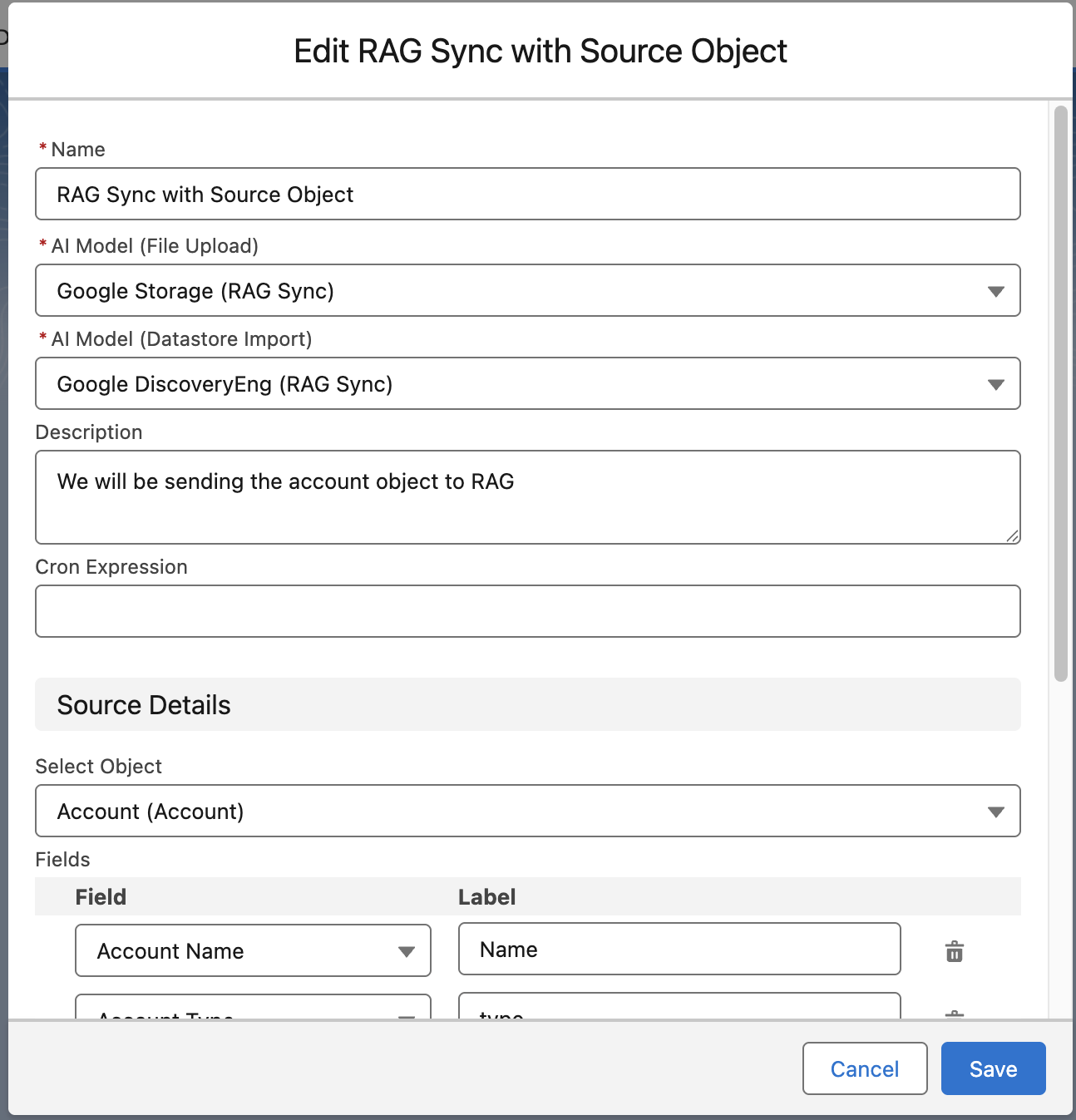
AI Model Configuration
- AI Model (File Upload): Select the AI Model to use for uploading files to the storage destination (vector storage, GCP Datastore bucket, or Azure Search)
- AI Model (Datastore Import): Select the AI Model to use for importing files from the storage source (vector storage, GCP Datastore, or Azure Search)
Scheduling Configuration
- Cron Expression: Enter a Salesforce-compliant CRON expression to schedule when the file content is updated to sync current changes in that content
Data Source Configuration
- Select Object: Select the object for which you want to get the files for KB
- Fields: Select the fields from which data will be extracted to generate the file and store it in the RAG. Note: For CSV files uploaded to GCP, data must be structured as Question-Answer pairs
- Where Clause: Helps to filter the records of the selected object
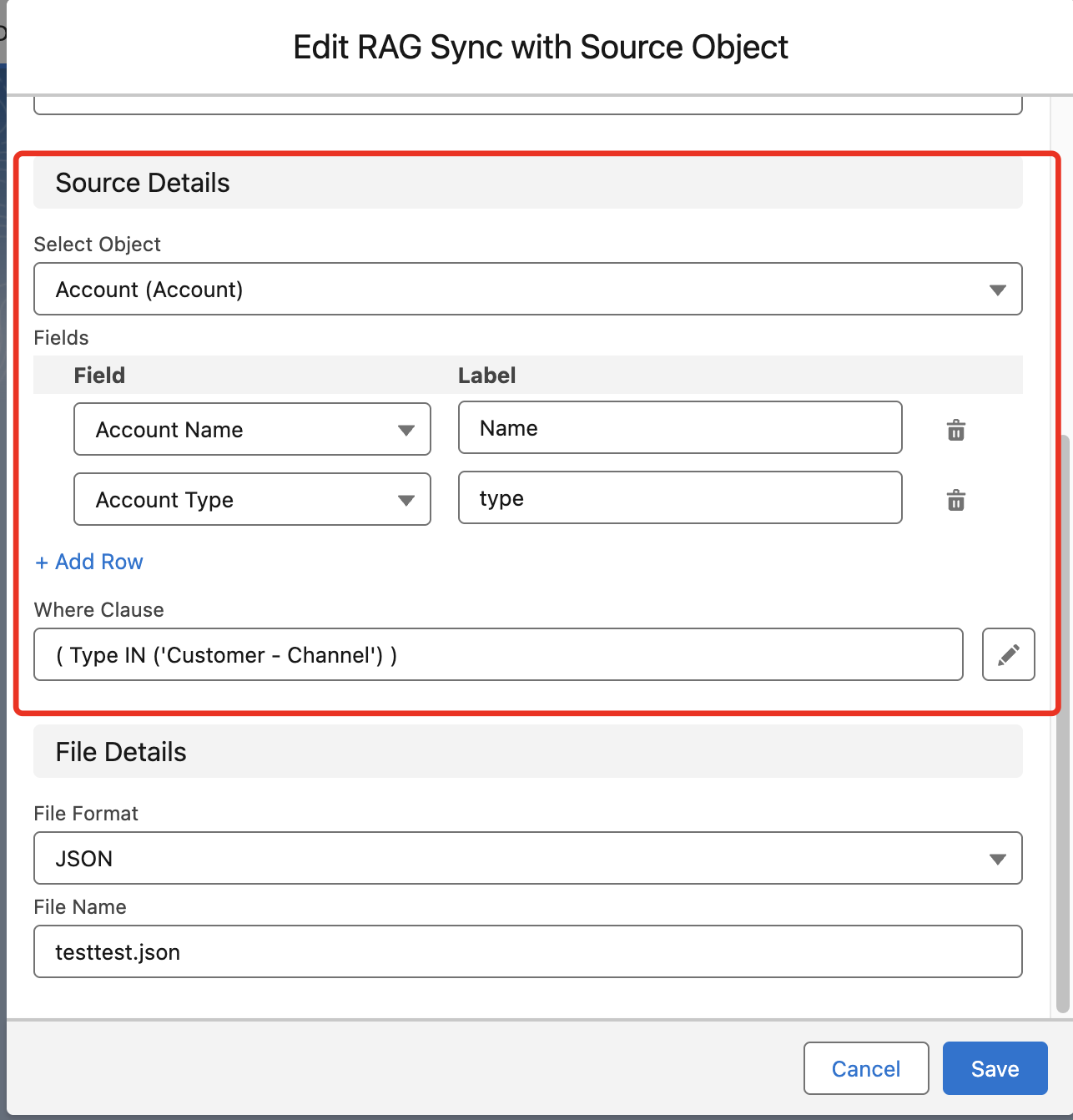
File Details
- File Format: Select the format for the generated file containing the selected object's data. Supported formats include CSV, JSON, and JSONL
- File Name: Specify the name for the generated file with the appropriate extension (
.csv,.json, or.jsonl)

File Upload Configuration
-
Files: Upload files to be sent to the vector store, enabling agents to use them as context when generating responses. Files can also be uploaded to Google Cloud Datastore or Azure Search for storage purposes.
Note: Currently, GPTfy agents can only provide responses based on files stored in the vector store. Files uploaded to GCP Datastore or Azure Search are stored but not yet accessible for agent responses.
*Note: Large File Handling - Files larger than 6MB are automatically split into smaller chunks during the upload process.
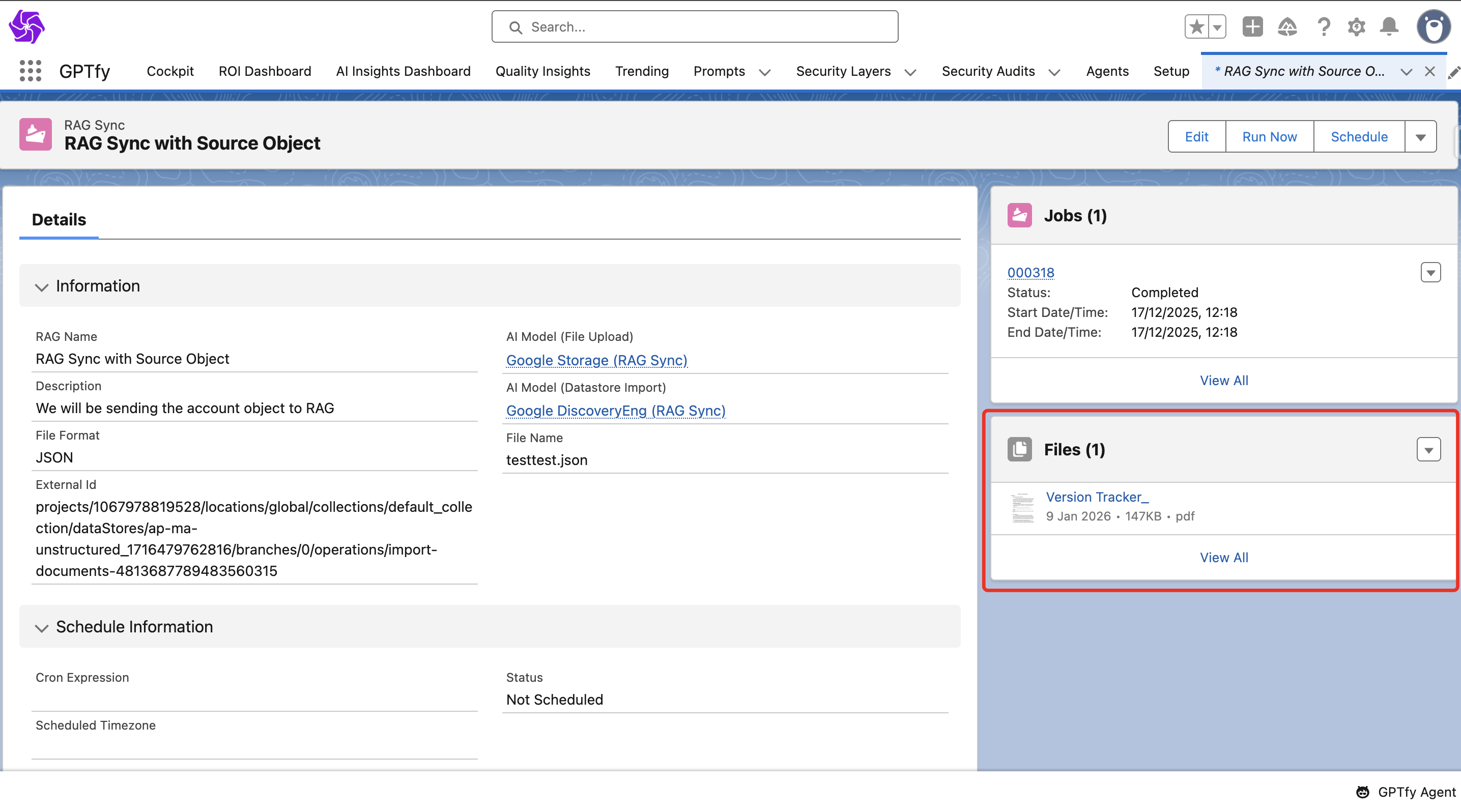
User Interface
Action Buttons
You can see the following buttons in the highlights panel at the top:
- Edit Button: Click to reconfigure changes like object selection and field modifications
- Run Now Button: Creates a new job that generates a file by fetching data from the selected fields from the selected object
- Schedule Button: Schedules a job according to the cron expression provided while creating the RAG sync record
- Delete Button: Click the dropdown to find the delete button

The information section displays details of the following fields:
- RAG Name
- Description
- File Format
- AI Model (File Upload)
- AI Model (Datastore Import)
- File Name
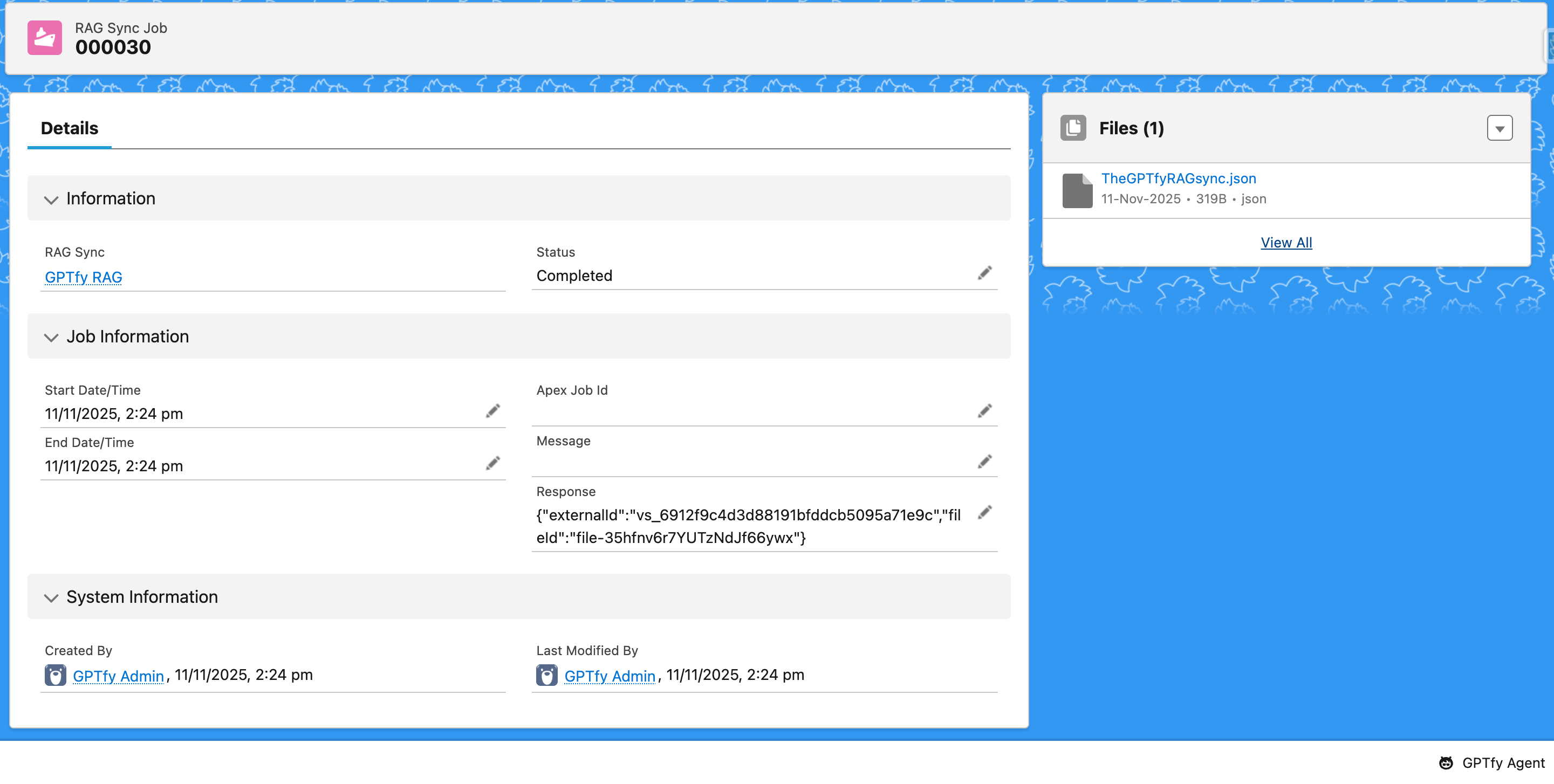
- External ID: Contains the vector store ID
Schedule Information Section
The schedule information section displays details of the following fields:
- Cron Expression
- Status: Information regarding whether the job is scheduled or not scheduled
- Scheduled Timezone: Timezone as per the user's locale
Source Details Section
The source details section displays details of the following fields:
- Object: Shows the selected object
- Where Clause: Helps to filter the records of the selected object
- Fields: Selected fields of the object
Benefits
- Automated Synchronization: Eliminates manual data extraction and conversion processes
- Real-time Updates: Scheduled jobs ensure knowledge base stays current
- Flexible Configuration: Support for various objects and field selections
- Uploads files directly to vector store or Google Cloud Platform datastore.
- Vector Store Integration: Seamless integration with AI RAG models
- Compliance: Maintains Salesforce KB as the authoritative source